Disclaimer
The material in this document is for informational purposes only. The products it describes are subject to change without prior notice, due to the manufacturer’s continuous development program. Rampiva makes no representations or warranties with respect to this document or with respect to the products described herein. Rampiva shall not be liable for any damages, losses, costs or expenses, direct, indirect or incidental, consequential or special, arising out of, or related to the use of this material or the products described herein.
© Rampiva Technology Inc. 2022 All Rights Reserved
Introduction
This guide describes the installation of Rampiva Automate. This document works like a reference - use the table of contents to look for the topic that you find out about.
The Rampiva software and this documentation may contain bugs, errors, or other limitations. If you encounter any issues with the Rampiva software or with this documentation, please contact support@rampiva.com.
Styles Used in This Guide
| Note: This is icon indicates that additional clarifications are provided, for example what the valid options are. |
| Tip: This icon lets you know that some particulary useful tidbit is provided, perhaps a way in which to use the application to achieve a certain behavior. |
| Warning: This icon highlights information that may help you avoid an undesired behavior. |
-
Emphasized: This style indicates the name of a menu, option or link.
-
code: This style indicates code that should be used verbatim, and can refer to file paths, parameter names or Nuix search queries.
1. Architecture
1.1. Components
Several components are part of an Automate deployment:
-
Rampiva Scheduler: Receives requests from the analysts or from enterprise services for queuing jobs and dispatches the jobs to the Rampiva Engine Servers.
-
Rampiva Engine Server: Receives jobs from Rampiva Scheduler, starts Engines and runs jobs.
-
Nuix Engine: The Nuix Engine creates/opens Nuix cases and performs the required work in the cases.
-
Nuix License Source: One or several Nuix licenses sources can be used, of the following types:
-
Nuix NMS
-
Nuix License Dongle
-
Nuix Cloud License
-
-
Authentication Source: The service that will be used to authenticate users and determine group membership. This can be a combination of the following:
-
Nuix UMS: The Nuix User Management server
-
LDAP: On-premise Active Directory
-
Azure AD: Microsoft Azure Active Directory
-
OIDC: An Open ID Connect compliant authentication service
-
Internal: Internally defined usernames and passwords, for initial configuration.
-
Additionally, the following components are optional:
-
Rampiva OData Server: Returns utilization data using the OData protocol.
-
Rampiva Scheduler Proxy: Offloads the data upload and hashing from the main Rampiva Scheduler.
-
Business Intelligence Software: A software tool that queries the Rampiva environment for metrics, analyzes the data and provides interactive dashboards, such as Microsoft Power BI or Tableau.
-
Microsoft SQL: Can be used to replace the built-in Scheduler database for storing job information, configuration, and audit logs.
1.2. Deployment
With the exception of Rampiva Engine Server which needs to be installed on each Nuix server that will be part of the Automate deployment, all remaining components can be deployed either on the same server or on dedicated servers.
When deploying the optional Rampiva OData Server on a server different than the server hosting Rampiva Scheduler, the utilization data must be redirected from the embedded database to a Microsoft SQL database.
1.2.1. Sample Distributed Architecture
This sample architecture consists in a dedicated server which hosts Rampiva Scheduler, several servers which host Rampiva Engine Servers and Nuix Engines, dedicated servers for the Nuix NMS and Nuix UMS, and connectivity with Azure AD.

1.2.2. Sample Standalone Architecture
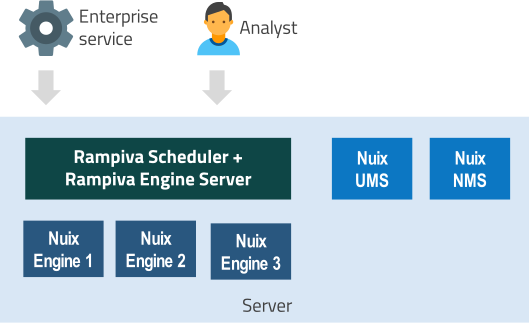
This sample architecture consists in a single server which hosts the Rampiva Scheduler and the Rampiva Engine Server, several Nuix Engines, as well as the Nuix NMS and Nuix UMS.
1.3. Network Traffic Flow
Components in an Automate deployment communicate over HTTP. To configure the TCP ports and TLS certificates, please see section Configuration.

| Source | Destination | Protocol (Port) |
|---|---|---|
Analyst Web Browser |
Rampiva Scheduler |
HTTPS (TCP/443) |
Analyst Web Browser |
Azure AD |
HTTPS (TCP/443) |
Rampiva Scheduler |
Rampiva Engine Server |
HTTPS (TCP/443) |
Rampiva Scheduler |
Nuix UMS |
HTTPS (TCP/443) |
Rampiva Scheduler |
Azure AD |
HTTPS (TCP/443) |
Nuix Engine |
Nuix NMS |
HTTPS (TCP/27443) |
2. Prerequisites
3. Configuration
3.1. Service Settings
The configuration files are located at the following locations:
-
Rampiva Scheduler
C:\ProgramData\Rampiva\Automate\Scheduler\config\config.yml -
Rampiva Engine Server
C:\ProgramData\Rampiva\Automate\EngineServer\config\config.yml -
Rampiva OData Server
C:\ProgramData\Rampiva\Automate\ODataServer\config\config.yml
3.1.1. Scheduler Service Settings
These files follows the YAML Syntax and contain the following parameters:
-
role:SCHEDULER, indicating that the Rampiva Scheduler component will run; -
apiSecret: Key used for the authentication between Rampiva Automate components. Set the same random value on all Rampiva Scheduler, Proxy and Server instances. -
internalCredentials: Indicates that credentials defined in the configuration file will be used for authentication. The configuration is provided in the following subkeys:-
displayName: (Optional) The name to display in the login page for this authentication method. -
restrictToLocalhost: (Optional) Restrict the availability of the Internal authentication to browsers from localhost. If this property is not specified, it defaults tofalse. -
usersEligibleLegalHoldAdministrator: (Optional) Make Internal users eligible for Legal Hold Administrations. If this property is not specified, it defaults tofalse. -
usersEligibleLegalHoldCustodian: (Optional) Make Internal users eligible for Legal Hold Custodians. If this property is not specified, it defaults tofalse. -
credentials: The list of credentials.
-
The credentials can be provided in either PBKDF2 format, using:
-
username -
email -
salt, a base64 encoded string -
iterations, the number of hash iterations -
hash, computed using thePBKDF2WithHmacSHA512algorithm with a key length of512bits.
or in cleartext, using:
-
username -
email -
password
Sample Internal authentication configuration with 2 users:
internalCredentials:
  displayName: UsernamePassword
  restrictToLocalhost: true
  credentials:
    - username: user1
      email: user1@example.com
      salt: NlbCqq8kL6sqdZQrjMmgSw==
      iterations: 1000000
      hash: ca4xiopDRshgyKvArOfKqBoDeVfbsOpayzVrh8n1WAWOhqvunITolqBBTiSAn1VxTBUz+15IfX4qxiTuHrthuA==

    - username: user2
      email: user2@example.com
password: Password2@| The Internal authentication method requires storing the usernames and passwords or hashes in the configuration file. It’s recommended to restrict this method to localhost. |
Set the restrictToLocalhost property to true to only allow logging in with internal credentials when accessing Automate as localhost. |
-
userSessionTimeout: The duration in seconds of inactivity after which a user session expires. -
nuixEnginePath: The location of the Nuix Engine deployment. This folder should containbin,lib, anduser-datasubfolders directly. -
log4jConfigurationFile: The log4j configuration file. -
enableCentralizedLogging:trueorfalseindicating if the centralized logging feature is enabled.
By default this feature is enabled, to disable this feature set the value to false |
-
centralizedLoggingRetention: The duration in days that the logs will be retained for. -
centralizedLoggingMaxSize: The max database size in bytes before a rollover. -
engineInitLogFolder: The log folder to use during the Engine initialization, before running job. -
archiveJobsPastDuration: The duration in seconds after which finished jobs are automatically archived. -
archiveJobsPastCount: The maximum number of finished jobs after which the oldest job is automatically archived. -
server: Indicates the IP/ports to listen on and the TLS certificate for HTTPS connections.
By default, the service listens on HTTP on port 80 on localhost, and on HTTPS on port 443 all IP addresses. To restrict the server to listen on a specific IP address, change 0.0.0.0 to the required IP address in the config.yml file. |
If upgrading Scheduler from a version prior to 6.0, the server will only accept HTTP/1.1 connections by default. To enable HTTP/2 connections, change type: https to type: h2 in the config.yml file. |
-
webConfiguration: Indicates which Web settings to apply to the Web server used for the REST API, including HSTS, XSS protections, CORS and CSP.
-
cors: The CORS configuration.
The Rampiva Automate REST API is designed to be accessed both by the webpage hosted on the Scheduler server, as well as from third-party services and web pages. For this reason, the default CORS configuration allows all origins. This configuration is secure, as each request to the REST API needs to be authenticated with a Bearer token. If there is a need to further restrict the CORS allowed origins, a stricter policy can be put in place by editing the default CORS settings in the config.yml file. |
Sample CORS policy restricting the allowed origins:
  cors:
allowedOrigins: ["https://scheduler.example.com"]-
logging: Indicates the parameters of the logging performed by the service. These logs will also contain the information that is typically logged by Nuix Workstation. The location of the worker logs is specified in thenuixFlagsparameter. -
auditStore: Indicates that a custom database is used for storing the audit information.-
driverClass:net.sourceforge.jtds.jdbc.Driver -
user: The database username -
password: The database password -
url: The JDBC connection string, for examplejdbc:jtds:sqlserver://HOST:1433/DATABASE -
properties: The connection properties.
-
Sample Microsoft SQL configuration:
auditStore:
  driverClass: net.sourceforge.jtds.jdbc.Driver
  user: rampiva-service
  password: SecretGoesHere
  url: jdbc:jtds:sqlserver://localhost:1433/rampiva
  properties:
charSet: UTF-8| If a username and password is not provided in the Microsoft SQL store configuration, the connection will be performed using Integrated Windows Authentication. When connecting to Microsoft SQL in this way, the Rampiva Scheduler service should be configured to run under an account that has access to the Microsoft SQL database. |
-
libraryStore: Indicates that a custom database is used for storing the libraries and workflows. -
clientMatterStore: Indicates that a custom database is used for storing the clients and matters. -
securityStore: Indicates that a custom database is used for storing the security policies. -
jobsStore: Indicates that a custom database is used for storing the backlog, running and finished jobs. -
jobsArchiveStore: Indicates that a custom database is used for storing the archived jobs. -
userSettingsStore: Indicates that a custom database is used for storing the user settings. -
utilizationStore: Indicates that a custom database is used for storing the operational utilization data. -
reportingStore: Indicates that a custom database is used for storing the case reporting data. -
noticeStore: Indicates that a custom database is used for storing the Legal Hold Notices data. -
legalHoldStore: Indicates that a custom database is used for storing the Legal Hold matters data. -
schedulerConfigurationStore: Indicates that a custom database is used for storing the Scheduler configuration. -
loggingStore: Indicates that a custom database is used for storing logs.
The loggingStore is a circular buffer of all platform logs and is expected to generate a write throughput. It is not recommended to redirect this logging store to a SQL database. |
Sample configuration relocating the loggingStore to D:\Logs\Rampiva:
loggingStore:
  driverClass: org.sqlite.JDBC
  url: jdbc:sqlite:D:/Logs/Rampiva/logging.db
  properties:
charSet: UTF-8| The various stores listed above can be all redirected to a single Microsoft SQL database, or to separate databases as needed. |
-
clientLogo: Path to the logo image file in JPEG, PNG or SVG format that will be displayed at the center top of the webpage, if using a Premium or Enterprise license. -
branding: Indicates that custom branding should be used, available with a Premium or Enterprise edition.-
logoImagePath: The path to the logo image that will be displayed at the top-left corner of the page, in JPEG, PNG or SVG format -
logoStylePath: The path to custom CSS for the logo image -
headerStylePath: The path to custom CSS for the header -
faviconPath: The path to the favicon file -
title: The custom page title
-
Sample branding setting:
branding:
  logoImagePath: C:\Sample\logo.png
  logoStylePath: C:\Sample\logo.css
  headerStylePath: C:\Sample\header.css
  title: Sample Custom Title
  faviconPath: C:\Sample\favicon.ico
Sample logo CSS:
height: 4rem;
width: auto;
Sample header CSS:
display: flex;
justify-content: space-between;
align-items: center;
height: 3.25rem;
background-color: #003366;
padding: 0 1.5rem;
min-width: 40rem;-
defaultUserSettings: Overwrite the user settings that apply when no specific configuration was set on a user profile.
Sample settings to define the allowed parameter values which are populated by default when creating a new Client or a new Matter:
defaultUserSettings:
  newMatter:
    allowedParameterValues:
      - "{custodian}": ["John Smith","Annie Rosella"]
      - "{sample_parameter_1}": []
    synchronizeJobs: true
  newClient:
    allowedParameterValues:
      - "{doc_id_prefix}": ["DOC","DOC-","DOCID"]
- "{sample_parameter_2}": []-
sortAllowedParametersValues:trueorfalseindicating if the Allowed Parameter values defined in the user interface or returned by scripts should be sorted and or if they should maintain the original order. -
synchronizeJobsOnAllMatters:trueorfalseindicating if only one Job is allowed to run on a Matter at any given time. -
authTokenTtl: The duration in seconds after which the user authentication token expires. The browser will make a request to refresh the authentication token at half of the token life span. By default, this is set to600seconds. -
disableAuthTokenExpiration:trueorfalseindicating that the user authentication token does not expire. By default, this is set tofalse. -
expiredAuthTokenTombstone: The duration in seconds for which to keep track of expired authentication tokens. When attempting to access Rampiva Automate with an expired authentication token, a friendly error message is be returned, and the current live user session is invalidated. By default, this is set to900. -
downgradeWebWorkerToken:trueorfalseindicating that the browser should downgrade the Web Worker token to make it accessible by scripts in the browser. By default, this is set tofalse.
With the default setting of downgradeWebWorkerToken: false, when refreshing the browser window, the user will be logged out. Setting this option to true will maintain the user session when the browser window is refreshed, but makes the authentication token accessible by scripts in the browser, which is less secure. |
-
libraryFileMaxSize: The maximum size in bytes of files that can be uploaded to the File Library, by default10000000.
| The File Library is designed to store configuration files and profiles. This limit does not apply to files uploaded to Data Repositories. |
-
expireIdleUploadAfter: The duration in milliseconds after which idle uploads to Data Repositories expire, by default3600000corresponding to 1 hour. -
uploadBufferMaxSize: The maximum buffer size in KiB to allocate during uploads to Data Repositories, by default8192. The buffer size can be allocated up to 3 times for each file upload, and is used only for the duration of the file upload.
When writing data to a file share connected over a high-latency network, increasing the size of the uploadBufferMaxSize may increase overall transfer performance at the cost of increased memory usage. |
-
uploadHashAlgorithms: The algorithm to use for hashing on the server-side when uploading files to Data Repositories, by defaultMD5. To disable hashing during upload, use the valueNone.
| Hashing files during upload requires significant CPU resources on the Scheduler server. To offload this computation to a different server, use the Scheduler Proxy role. |
-
enableUtilizationEndpoint: Enable the OData service on Scheduler. To disable use the valuefalse.
3.1.2. Scheduler Proxy Service Settings
These files follows the YAML Syntax and contain the following parameters:
-
role:PROXY, indicating that the Rampiva Scheduler Proxy component will run; -
apiSecret: Key used for the authentication between Rampiva Automate components. Set the same random value on all Rampiva Scheduler, Proxy and Server instances. -
proxy: The details of the main Scheduler instance that the proxy uses. The configuration is provided in the following subkeys:-
baseUrl: The URL of the Scheduler instance. -
whitelistedCertFingerprints: Scheduler certificate fingerprints used for verification when opening a secure connection.
-
Sample proxy configuration:
proxy:
  baseUrl: https://scheduler.rampiva.local
  whitelistedCertFingerprints:
- e62dd01ca608c10402d07714cfd626bfc6b1001e5a16ca039d1050a71f73ee24-
nuixEnginePath: The location of the Nuix Engine deployment. This folder should containbin,lib, anduser-datasubfolders directly. -
log4jConfigurationFile: The log4j configuration file. -
server: Indicates the IP/ports to listen on and the TLS certificate for HTTPS connections. -
webConfiguration: Indicates which Web settings to apply to the Web server used for the REST API.
3.1.3. Engine Server Service Settings
These files follows the YAML Syntax and contain the following parameters:
-
role:ENGINE_SERVER, indicating that the Rampiva Engine Server component will run; -
apiSecret: Key used for the authentication between Rampiva Automate components. Set the same random value on all Rampiva Scheduler, Proxy and Server instances. -
nuixEnginePath: The location of the Nuix Engine deployment. This folder should containbin,lib, anduser-datasubfolders directly. -
log4jConfigurationFile: The log4j configuration file. -
engineInitLogFolder: The temporary location used by Engines for storing configuration files and logs during the initialization phase. When running Jobs, the Engine will store the logs and configuration files at the location specified in the Execution Profile. -
engineInitTimeout: The timeout in seconds that the Engine is allowed to initialize, by default120. -
server: Indicates the IP/ports to listen on and the TLS certificate for HTTPS connections. -
webConfiguration: Indicates which Web settings to apply to the Web server used for the REST API. -
jobRunningLogMaxSize: Indicates the maximum number of logs that the job running log stores, by default20. -
logging: Indicates the parameters of the logging performed by the service. These logs will also contain the information that is typically logged by Nuix Workstation. The location of the worker logs is specified in thenuixFlagsparameter. -
workerBrokerIP: The IP address to use for hosting Worker Brokers when running Remote Workers. -
workerBrokerStartPort: The port range start for Worker Brokers. -
workerBrokerEndPort: The port range end for Worker Brokers.
Sample settings for configuring a Worker Broker on IP 10.0.0.1:
workerBrokerIP: 10.0.0.1
workerBrokerStartPort: 50000
workerBrokerEndPort: 50100
If the workerBrokerIP setting is not provided, the server will start a broker on a default network adapter. In an environment where servers have multiple network adapters, configure the workerBrokerIP on each server with the IP address that should be used by other servers joing remote jobs to contact this server. |
3.1.4. OData Server Service Settings
These files follows the YAML Syntax and contain the following parameters:
-
role:ODATA_SERVER, indicating that the Rampiva OData Server component will run; -
internalCredentials: Indicates that credentials defined in the configuration file will be used for authentication. The configuration is provided in the following subkeys:-
displayName: (Optional) The name to display in the login page for this authentication method. -
restrictToLocalhost: (Optional) Restrict the availability of the Internal authentication to browsers from localhost. If this property is not specified, it defaults tofalse. -
credentials: The list of credentials.
-
The credentials can be provided in either PBKDF2 format, using:
-
username -
email -
salt, a base64 encoded string -
iterations, the number of hash iterations -
hash, computed using thePBKDF2WithHmacSHA512algorithm with a key length of512bits.
or in cleartext, using:
-
username -
email -
password
Sample Internal authentication configuration with 2 users:
internalCredentials:
  displayName: UsernamePassword
  restrictToLocalhost: true
  credentials:
    - username: user1
      email: user1@example.com
      salt: NlbCqq8kL6sqdZQrjMmgSw==
      iterations: 1000000
      hash: ca4xiopDRshgyKvArOfKqBoDeVfbsOpayzVrh8n1WAWOhqvunITolqBBTiSAn1VxTBUz+15IfX4qxiTuHrthuA==

    - username: user2
      email: user2@example.com
password: Password2@| The Internal authentication method requires storing the usernames and passwords or hashes in the configuration file. It’s recommended to restrict this method to localhost. |
Set the restrictToLocalhost property to true to only allow logging in with internal credentials when accessing Automate as localhost. |
-
server: Indicates the IP/ports to listen on and the TLS certificate for HTTPS connections.
By default, the service listens on HTTP on port 8081 on localhost, and on HTTPS on port 8443 all IP addresses. To restrict the server to listen on a specific IP address, change 0.0.0.0 to the required IP address in the config.yml file. |
-
webConfiguration: Indicates which Web settings to apply to the Web server used for the REST API. -
utilizationStore: Indicates that a custom database is used for storing the audit information.-
driverClass:net.sourceforge.jtds.jdbc.Driver -
user: The database username -
password: The database password -
url: The JDBC connection string, for examplejdbc:jtds:sqlserver://HOST:1433/DATABASE -
properties: The connection properties.
-
Sample Microsoft SQL configuration:
utilizationStore:
  driverClass: net.sourceforge.jtds.jdbc.Driver
  user: rampiva-service
  password: SecretGoesHere
  url: jdbc:jtds:sqlserver://localhost:1433/rampiva
  properties:
charSet: UTF-8| If a username and password is not provided in the Microsoft SQL store configuration, the connection will be performed using Integrated Windows Authentication. When connecting to Microsoft SQL in this way, the Rampiva Scheduler service should be configured to run under an account that has access to the Microsoft SQL database. |
3.2. Authentication
3.2.1. Nuix UMS
If using the Nuix UMS authentication method, configure the UMS Authentication Service in the Automate web page, in the Settings tab, under Authentication Services. All users which are defined in the Nuix UMS will be able to log in to Automate. The access level of each user is determined by the security policies defined in the Automate web page, in the Settings tab.
3.2.2. LDAP
If using the LDAP authentication method, configure the LDAP Authentication Service in the Automate web page, in the Settings tab, under Authentication Services. All users which are defined in the provided LDAP domainDN will be able to log in to Automate. The access level of each user is determined by the security policies defined in the Automate web page, in the Settings tab.
3.2.3. Internal
If using the Internal authentication method, set the internalCredentials configuration in the YAML file as indicated in Service Settings.
3.3. Access Security Policies
Access to Automate resources is defined in the Settings page, in the Security Policies tab. The default policy allows any authenticated user to View and Modify all resources, as well as to Submit Jobs with any settings.
3.4. Memory
3.4.1. Nuix Workers
The memory of Nuix Workers can be specified either in the workflow Configuration operation, or explicitly as a command-line parameter in the Execution Profiles, for example:
-Dnuix.worker.jvm.arguments="-Xmx8g"3.4.2. Nuix Engine
The memory of the Nuix Engine, equivalent to the memory of the Nuix Workstation as a command-line parameter in the Execution Profiles, for example:
-Xmx2g| Each Nuix Engine will run under a separate JVM and will not share memory with the other Nuix Engines or the Rampiva services. |
3.5. Shared Data Sources
Rampiva workflows are executed on the servers running the Rampiva Engine Server component. To ensure that workflows can access cases and source data from a shared location, provide a UNC path or a mapped drive letter path which is accessible from all servers running the Rampiva Engine Server component.
By default, the Rampiva Engine Server service runs under the Local System account, and starts Engines under the same user account.
A different user account can be specified in Execution Profiles, as required.
4. Troubleshooting
4.1. Browse to Rampiva Scheduler
By default, Rampiva Scheduler listens on 127.0.0.1 on port 80 and all IP addresses on port 443. To access the default installation, browse to address: http://localhost
4.2. Rampiva Service Does Not Start
Rampiva Scheduler and Engine Server run as Windows services. If the services are started, inspect the log files at C:\Temp\Log\rampiva-scheduler.log and C:\Temp\Log\rampiva-engine-server.log.
4.3. Log In Error
If the error Error communicating with the authentication server is shown when attempting to log in, inspect the logs to determine the issue encountered by Automate when communicating with the authentication server.
4.4. Adding Rampiva Engine Server throws javax.net.ssl.SSLHandshakeException error
Ensure that the Java Runtime Environment from the latest version of Nuix Workstation deployed on each the Rampiva Scheduler server trusts the TLS certificate of the Rampiva Engine Server. See section Managing Certificates for more details.
5. Managing Certificates
5.1. Generate Certificate for Rampiva Scheduler/Server
By default, Rampiva Scheduler and Rampiva Engine Server generate a self-signed certificate at installation. To generate a set of self-signed certificates, run the batch file C:\Program Files\Rampiva\Automate\bin\generateAllCertificates.bat with administrative privileges.
5.2. Import Existing Certificate for Rampiva Scheduler/Server
To change the certificate used by Rampiva Scheduler or Rampiva Engine Server, for example with a certificate generated by an internal certification authority, run the following commands:
-
Open an administrative command prompt
-
Run:
del "C:\ProgramData\Rampiva\Automate\Scheduler\config\keystore.jks"
to delete the previous certificate store
-
Run:
cd "C:\Program Files\Nuix\Nuix 8.0\jre"
-
Run:
bin\keytool -importkeystore -srckeystore C:\temp\myCertificate.pfx -srcstoretype pkcs12 -destkeystore "C:\ProgramData\Rampiva\Automate\Scheduler\config\keystore.jks" -deststoretype JKS -storepass defaultPassword1234
where C:\temp\myCertificate.pfx corresponds to the existing certificate.
Use the starting path C:\ProgramData\Rampiva\Automate\EngineServer to replace the certificate of Rampiva Engine Server instead of the certificate of Rampiva Scheduler. |
5.3. Add the Rampiva Engine Server Certificate to Trust Store
On the server running the Rampiva Scheduler module, perform the following steps:
-
Navigate to
https://SERVERNAMEwhereSERVERNAMEis the computer name on which Rampiva Engine Server is installed -
Save the certificate
-
In Google Chrome, open the Developer Tag using
F12 -
Open the Security tab
-
Select View certificate
-
Open the Details tab
-
Click on Copy to File…*
-
Save the certificate in DER encoded binary format
-
-
Open an administrative command prompt
-
Run:
cd "C:\Program Files\Nuix\Nuix 8.0\jre"
-
Run:
bin\keytool -import -alias rampiva-server-name -storepass changeit -keystore lib\security\cacerts -file C:\Temp\serverCertificate.cer
where C:\Temp\serverCertificate.cer corresponds to the certificate file saved at the previous step, and rampiva-server-name is a unique name for each Rampiva Engine Server.
-
Type yes
-
Confirm message Certificate was added to keystore is displayed
-
Restart the Rampiva Scheduler service
-
In the Settings page, add the server with the URL
https://SERVERNAMEwhereSERVERNAMEis the computer name on which Rampiva Engine Server is installed, as displayed when running the commandecho %COMPUTERNAME%in a command prompt.
5.4. Add the Nuix NMS Certificate to the Trust Store
On each server running the Ramiva Scheduler or the Rampiva Engine Server module, perform the following steps:
-
Navigate to
https://NMS:27443whereNMSis the computer name on which the NMS is installed -
Save the certificate
-
In Google Chrome, open the Developer Tag using
F12 -
Open the Security tab
-
Select View certificate
-
Open the Details tab
-
Click on Copy to File…
-
Save the certificate in DER encoded binary format as:
-
C:\Temp\nms.cer
-
Open an administrative command prompt
-
Run:
cd "C:\Program Files\Nuix\Nuix 8.0\jre"
-
Run:
bin\keytool -import -alias nuix-nms -storepass changeit -keystore lib\security\cacerts -file C:\Temp\nms.cer
-
Type yes
-
Confirm message Certificate was added to keystore is displayed
-
Restart the Rampiva Scheduler service
6. Utilization and Reporting
The Utilization and Reporting data is provided as an OData V4 feed, if this feature is enabled in the Rampiva license.
| The OData feed only support querying the metadata and retrieving all data from the views. OData filters are not supported. |
The OData feed can be accessed under the following endpoint, using Basic or Microsoft OAuth authentication:
-
/api/v2/reporting/odata
7. REST API documentation
Rampiva Scheduler can be accessed either directly for a browser, or using the REST API. The documentation of the API is provided in OpenAPI v3 format, under /openapi.
For example, to access the API documentation in a standard installation of Rampiva Scheduler, browse to http://localhost/openapi
8. Centralized Logging
Centralized logging consolidates all of the logs from Scheduler, Engine Server, Engine and Worker logs into the logging database managed by Scheduler.
Centralized logging is enabled by default, meaning that both the log file as well as the database log will exist. To disable centralized logging, set the enableCentralizedLogging key to false in the configuration YAML file as indicated in Service Settings file.
| If centralized logging is disabled, the download job logs and download system logs features will be disabled. |
Centralized logging will automatically delete logs older than the retention period. The default retention period is 30 days. To change the retention period, edit the centralizedLoggingRetention key in YAML file.
When the database logs size exceeds the maximum database size, older logs will be deleted. By default the maximum database size is 1000000000 bytes (1 GB). To change the default max database size edit the centralizedLoggingMaxSize key in the YAML file.
| The actual centralized logging database size could exceed the specified maximum size, due to database overhead and delays in deleting old log lines. |
9. Filepaths Inventory
9.1. Default Filepaths
9.1.1. Scheduler
-
C:\Program Files\Rampiva\Automate: Installation folder -
%programdata%\Rampiva\Automate\Scheduler\config: Configuration folder -
%programdata%\Rampiva\Automate\Scheduler\stores: Persistence and archival of job details, utilization, audit, reporting and utilization -
C:\Temp\logs\rampiva-scheduler.log: Main log -
C:\Temp\logs\rampiva-scheduler.%d.log.zip: Previous main log files -
C:\Temp\logs\Rampiva Scheduler.wrapper.log: Service wrapper logs -
C:\Temp\logs\Rampiva Scheduler.err.log: Service standard error log -
C:\Temp\logs\Rampiva Scheduler.out.log: Service standard output log
9.1.2. Engine Server
-
C:\Program Files\Rampiva\Automate: Installation folder -
%programdata%\Rampiva\Automate\EngineServer\config: Configuration folder -
C:\Temp\logs\rampiva-engine-server.log: Main log -
C:\Temp\logs\rampiva-engine-server.%d.log.zip: Previous main log files -
C:\Temp\logs\Rampiva Engine Server.wrapper.log: Service wrapper logs -
C:\Temp\logs\Rampiva Engine Server.err.log: Service standard error log -
C:\Temp\logs\Rampiva Engine Server.out.log: Service standard output log
9.1.3. Engine
-
C:\Temp\logs\rampiva-engine.aaaaaaaa-init.log: Init log -
C:\Temp\logs\rampiva-engine.aaaaaaaa-init.yml: Init configuration -
C:\Temp\logs\rampiva-engine.aaaaaaaa-service.exe: Service wrapper -
C:\Temp\logs\rampiva-engine.aaaaaaaa-service.xml: Service configuration -
C:\Temp\logs\rampiva-engine.aaaaaaaa-job.bbbbbbbb.log: Job log -
C:\Temp\logs\rampiva-engine.aaaaaaaa-job.bbbbbbbb.yml: Job configuration
9.2. Changing Log Locations
The default filepaths can be changed from the following locations:
-
Scheduler main log: Update the section
loggingfromC:\ProgramData\Rampiva\Automate\Scheduler\config\config.yml -
Scheduler service-related logs: Update the tags
<workingdirectory>and<logpath>fromC:\Program Files\Rampiva\Automate\Scheduler\Rampiva Scheduler.xml -
Engine Server main log: Update the section
loggingfromC:\ProgramData\Rampiva\Automate\EngineServer\config\config.yml -
Engine Server service-related logs: Update the tags
<workingdirectory>and<logpath>fromC:\Program Files\Rampiva\Automate\EngineServer\Rampiva Engine Server.xml -
Engine init log, configuration and service-related logs: Update the section
engineInitLogFolderfromC:\ProgramData\Rampiva\Automate\EngineServer\config\config.yml -
Job log and configuration: Update the field
Log Folderand set the command-line parameter-Dnuix.logdir=c:\Temp\Logsin the Execution Profile